
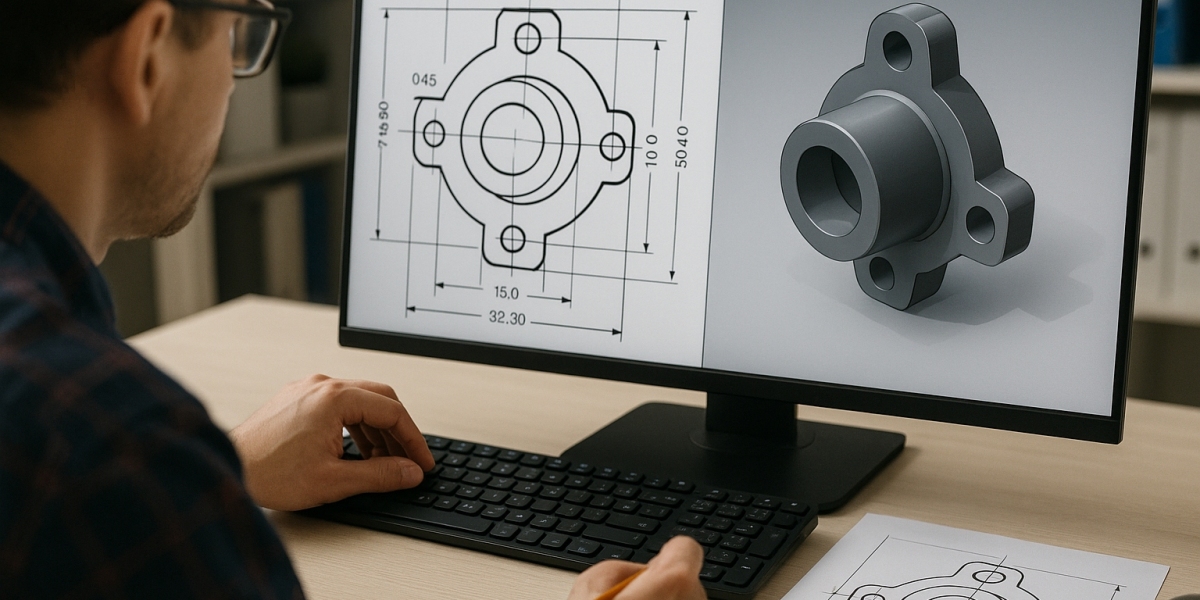

In today’s fast-evolving design and construction landscape, the ability to move from flat drawings to intelligent 3D models is no longer a luxury it’s a necessity. Whether you're an architect in London, an engineer in New York, or a startup founder building your first product, understanding how to convert 2D drawing to 3D model workflows can significantly improve visualization, accuracy, and decision-making.
With increasing demand for digital transformation in the USA and UK construction sectors, 2D to 3D conversion services have become a critical part of modern design processes. According to industry reports, over 70% of architecture and engineering firms in developed markets now rely on 3D modeling for project planning and client presentations.
So, how exactly do you transform a 2D drawing into a fully functional 3D model in AutoCAD? Let’s break it down step by step.
What Is 2D to 3D Conversion in AutoCAD?
2D to 3D conversion in AutoCAD refers to the process of transforming flat technical drawings (plans, elevations, sections) into three-dimensional models using AutoCAD’s modeling tools.
This process enables:
- Better visualization of designs
- Early detection of design errors
- Improved collaboration between stakeholders
- Faster project approvals
For businesses and startups, especially in competitive markets like the UK and USA, adopting a 2D drawing to 3D converter workflow can directly impact project success and profitability.
Why Is Converting 2D Drawings to 3D Models Important?
Before diving into the steps, it’s worth understanding why this process matters.
Key Benefits
- Enhanced Visualization: Clients understand designs better in 3D than 2D
- Error Reduction: Identify clashes and inconsistencies early
- Improved Communication: Align architects, engineers, and contractors
- Faster Decision-Making: Realistic models speed up approvals
? According to a report by McKinsey, digital design tools like 3D modeling can improve project efficiency by up to 20%.
What Do You Need Before Starting?
Before you begin your 2D to 3D conversion in AutoCAD, ensure you have:
- A clean and properly scaled 2D drawing (DWG/DXF format)
- Defined layers (walls, doors, windows, etc.)
- Basic knowledge of AutoCAD interface
- Understanding of coordinates (X, Y, Z axis)
Step-by-Step Guide: How to Convert 2D Drawing to 3D Model in AutoCAD
Let’s walk through the complete beginner-friendly process.
Step 1: Prepare Your 2D Drawing
Start by cleaning your 2D file.
What to check:
- Remove duplicate lines
- Ensure all elements are properly aligned
- Use layers for better organization
- Convert polylines into closed shapes
? Tip: A well-prepared drawing is the foundation of accurate 2D to 3D conversion services.
Step 2: Switch to 3D Workspace
AutoCAD offers different workspaces. For 3D modeling:
- Go to Workspace Switching (bottom right corner)
- Select 3D Modeling
This enables access to tools like:
- Extrude
- Revolve
- Sweep
- Loft
Step 3: Set Up Your View and UCS
Understanding the User Coordinate System (UCS) is crucial.
- Use UCS command to align your working plane
- Switch between views (Top, Front, Isometric)
- Use ViewCube for easy navigation
Step 4: Convert 2D Shapes into 3D Objects
Now comes the core process of convert 2D drawing to 3D model.
Common Methods:
1. Extrude
- Select a closed 2D shape
- Use
EXTRUDEcommand - Specify height
? Best for walls, columns, and basic structures
2. Presspull
- Click inside a closed boundary
- Pull it into a 3D object
? Faster alternative to extrusion
3. Revolve
- Rotate a 2D profile around an axis
? Ideal for cylindrical objects like pipes
4. Sweep
- Move a profile along a path
? Useful for railings, ducts, etc.
Step 5: Add Depth and Details
Once basic shapes are created:
- Use FILLET and CHAMFER for edges
- Apply UNION, SUBTRACT, INTERSECT for complex geometry
- Create openings for doors and windows
Step 6: Apply Materials and Rendering
To make your 3D model realistic:
- Use MATERIALS command
- Assign textures (wood, glass, metal)
- Apply lighting and shadows
This step is crucial for client presentations and marketing visuals.
Step 7: Validate and Optimize the Model
Before finalizing:
- Check dimensions and proportions
- Remove unnecessary geometry
- Optimize file size
What Are the Common Challenges in 2D to 3D Conversion?
Even with tools like AutoCAD, beginners often face challenges.
Key Issues:
- Incomplete 2D Drawings: Missing dimensions or unclear details
- Layer Mismanagement: Leads to confusion during modeling
- Scaling Errors: Incorrect proportions in 3D
- Complex Geometry: Difficult to model manually
? This is why many firms outsource to professional 2D to 3D conversion services to save time and ensure accuracy.
What Are the Latest Trends in 2D to 3D Conversion?
The CAD industry is evolving rapidly, especially in the USA and UK.
1. Integration with BIM (Building Information Modeling)
3D models are now part of larger BIM ecosystems, improving lifecycle management.
2. AI-Powered Automation
AI tools are emerging that can automatically convert 2D drawing to 3D model, reducing manual effort.
3. Cloud-Based Collaboration
Teams across geographies can now collaborate on 3D models in real time.
4. Digital Twins
3D models are being used to create real-time digital replicas of physical assets.
? According to Statista, the global CAD market is expected to exceed $11 billion by 2027, driven largely by 3D modeling demand.
When Should You Use a 2D Drawing to 3D Converter?
While AutoCAD is powerful, there are scenarios where automated tools or services are more efficient.
Ideal Use Cases:
- Large-scale construction projects
- Complex mechanical designs
- Tight deadlines
- Limited in-house expertise
Using a 2D drawing to 3D converter or outsourcing can help businesses scale faster without compromising quality.
How Much Do 2D to 3D Conversion Services Cost?
Costs vary depending on:
- Complexity of the drawing
- Level of detail required
- Turnaround time
Average Pricing (USA & UK Market):
- Simple models: $50–$150 per drawing
- Moderate complexity: $150–$500
- High-detail projects: $500+
Outsourcing often proves more cost-effective than hiring in-house teams, especially for startups.
Best Practices for Beginners
If you're just starting with 2D to 3D conversion in AutoCAD, keep these tips in mind:
- Start with simple shapes
- Use layers effectively
- Learn keyboard shortcuts
- Practice regularly
- Watch real-world project examples
Final Thoughts: Should You Do It Yourself or Outsource?
Learning how to convert 2D drawing to 3D model in AutoCAD is a valuable skill, especially for professionals in architecture, engineering, and product design. It empowers you to visualize ideas, improve communication, and stay competitive in global markets like the UK and USA.
However, as projects grow in complexity and scale, many businesses turn to professional 2D to 3D conversion services for faster turnaround, higher accuracy, and cost efficiency.
If you're a startup or growing firm looking to streamline your design workflow, partnering with an experienced UK-based CAD design company can be a smart move helping you focus on innovation while experts handle the technical conversion.