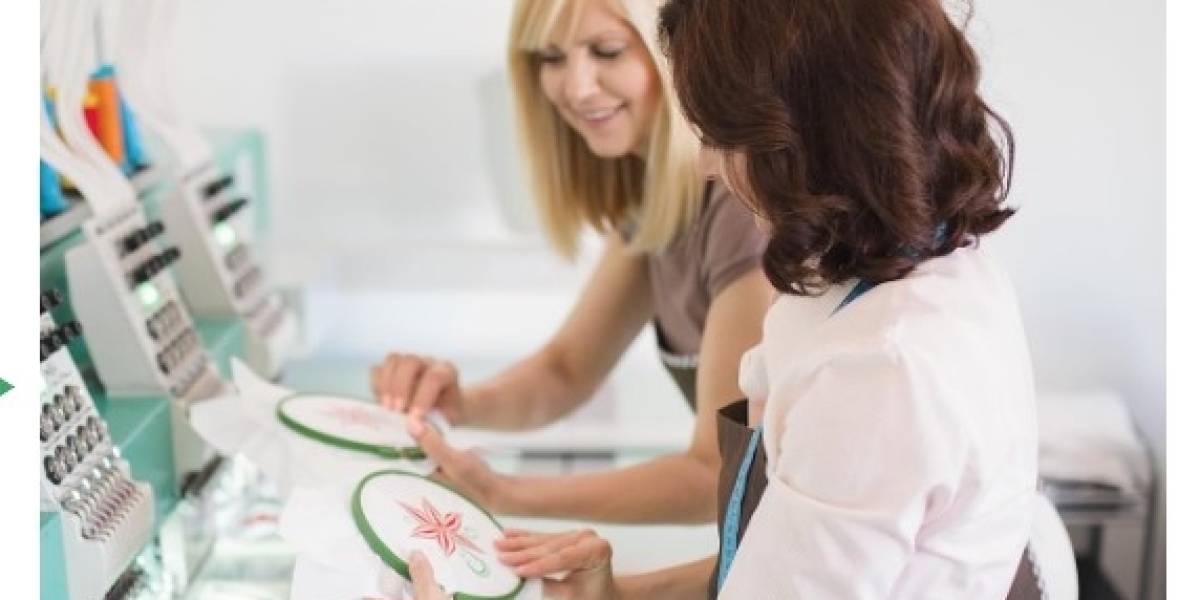

Logos help people know a brand. Many shops place their logo on shirts, caps, bags, and jackets. Embroidery is a great way to do this. It looks neat, strong, and long-lasting.But an embroidery machine cannot read a normal image like JPG or PNG. It needs a special stitch file. For many machines, that file type is SEW. This guide will show you the simple way to prepare and Convert Business Logo to SEW File Format so your embroidery machine can stitch it well.
I have worked with logo digitizing for years. I have seen many logos turn into clean stitch files. I have also seen many fail because the design was not ready. In this guide, I will share easy steps and tips that work in real projects.
What Is a SEW Embroidery File?
A SEW file is a format used by some embroidery machines. It stores stitch data. This means the file tells the machine:
Where the needle should move
Which color thread to use
How many stitches to make
Unlike image files, this format contains stitch paths.
Why Machines Need Stitch Files
Embroidery machines do not “see” images like humans do. They follow stitch commands. The SEW file works like a map for the needle.
Without this map, the machine cannot sew the design.
Machines That Use SEW Files
Many machines from Janome and Elna support SEW files. If you use one of these machines, you often need this format for designs.
Why Turn a Logo into an Embroidery File?
Not every logo works well for embroidery. A logo made for a website may have many tiny parts. These parts may not stitch well.
When you convert a logo into a stitch file, you prepare it for fabric.
Benefits of Logo Embroidery
Strong and long lasting
Professional look
Great for uniforms
Works well for brand identity
Many companies use embroidered logos on staff clothing. It builds trust and brand image.
Basic Tools You Need
Before you start, you need a few tools.
1. Logo Image File
Your logo can be in formats like:
PNG
JPG
SVG
AI
Vector files like SVG or AI work best.
2. Embroidery Digitizing Software
This software helps create stitch paths. Some popular programs include:
Wilcom
Hatch
Embird
Brother PE Design
These tools allow you to draw stitches over the logo.
3. An Embroidery Machine
Your machine must support SEW format. Check your manual to confirm.
4. USB or File Transfer
You need a way to move the design to your machine.
Step-by-Step Process to Create a SEW File
Let’s go through the full process step by step.
Step 1: Check the Logo Design
Start by looking at the logo.
Ask these simple questions:
Are there tiny letters?
Are there thin lines?
Are there too many colors?
Small details can be hard for embroidery.
Tips
Use bold shapes
Avoid tiny text
Limit color count
Simple designs stitch better.
Step 2: Clean the Artwork
Next, clean the logo file.
Remove things like:
Shadows
Gradients
Very thin lines
Embroidery uses solid stitches. Soft effects do not work well.
Best Practice
Make a flat color version of the logo. This makes digitizing easier.
Step 3: Import the Logo into Digitizing Software
Open your digitizing program.
Then import the logo image.
Now you will see the logo on the screen. This will act as a guide for your stitches.
Step 4: Trace the Logo with Stitches
Now comes the main step.
You must trace the shapes with stitch tools.
Common stitch types include:
Fill Stitch
Used for large shapes.
Examples:
Logo background
Big letters
Satin Stitch
Used for borders and medium shapes.
Examples:
Text
Thick lines
Running Stitch
Used for small details.
Examples:
Thin outlines
Light accents
Step 5: Set the Stitch Direction
Stitch direction is very important.
If stitches go in the wrong way, the fabric may pull or wrinkle.
Good stitch direction helps:
Fabric stay flat
Design look smooth
Most digitizing software lets you control stitch angles.
Step 6: Choose Thread Colors
Next, match the thread colors with the logo.
You can pick colors from a thread chart.
Most embroidery shops use brands like:
Madeira
Isacord
Brother
Try to match the brand color as close as possible.
Step 7: Set Underlay Stitches
Underlay stitches go below the main stitches.
They help:
Hold fabric steady
Improve stitch shape
Add strength
This step is often skipped by beginners, but it is very important.
Step 8: Check Stitch Density
Density means how close stitches are.
Too dense:
Thread may break
Fabric may wrinkle
Too loose:
Fabric may show through
Good density creates smooth embroidery.
Step 9: Preview the Stitch Simulation
Most software shows a stitch preview.
Watch the design sew on screen.
This helps you check:
Stitch order
Color changes
Design flow
Fix errors before exporting.
Step 10: Export as SEW File
Now your design is ready.
Go to Export or Save As.
Select SEW format.
Your logo is now ready for embroidery machines that support this file type.
Testing the Design Before Production
Never start mass embroidery without a test.
Always run a sample stitch.
Why Testing Matters
Testing helps you see:
Thread breaks
Fabric pull
Design shape
Even a good file may need small fixes.
Test on Similar Fabric
If your logo will be on a shirt, test on the same fabric type.
Different fabrics behave differently.
Common Problems and Simple Fixes
Even skilled digitizers face problems.
Here are common issues.
Thread Breaking
Cause:
High density
Bad needle
Poor thread
Fix:
Reduce stitch density
Change needle
Fabric Puckering
Cause:
Wrong stabilizer
Dense stitches
Fix:
Use proper backing
Adjust stitch settings
Small Text Not Clear
Cause:
Text too small
Fix:
Increase letter size
Use satin stitch
Best Logo Design Tips for Embroidery
If you design logos for embroidery, follow these tips.
Keep the Design Simple
Simple logos stitch better.
Avoid too many tiny parts.
Use Bold Lines
Thin lines may break during stitching.
Bold shapes look stronger.
Limit Colors
Too many colors increase machine stops.
Most embroidery logos use 3 to 6 colors.
Avoid Gradients
Embroidery uses thread, not ink.
Gradients do not translate well.
Choosing the Right Fabric and Stabilizer
Fabric affects embroidery quality.
Common Fabric Types
Cotton
Polyester
Denim
Fleece
Each fabric behaves differently.
Stabilizers
Stabilizers support the fabric during stitching.
Types include:
Tear away
Cut away
Wash away
Cut away stabilizer works well for most logos.
Real-World Experience Tips
From years of working with embroidery designs, a few habits help a lot.
Always Zoom In
Tiny errors appear when zoomed in.
Fix them early.
Plan Stitch Order
Good order prevents thread jumps.
It also saves time on the machine.
Keep Backup Files
Always save:
Original artwork
Digitizing project file
Final SEW file
This helps if changes are needed later.
When to Use Professional Digitizing
Sometimes a logo is complex.
Examples include:
Detailed mascots
Complex badges
Tiny lettering
In such cases, expert digitizers can help. They know how to manage stitch flow and density.
A well digitized file saves time, thread, and fabric.
Final Thoughts
Turning a logo into an embroidery file is both a skill and an art. With the right steps, anyone can learn the process.
Start with a clean logo. Use good digitizing software. Plan stitches carefully. Test your design before final production.
With practice, your embroidered logos will look sharp and professional.
Embroidery is more than decoration. It builds brand identity and trust. When a logo stitches well on fabric, it becomes a strong symbol of the brand.
If you follow the steps in this guide, you will be able to create embroidery-ready files and bring company logos to life through stitches.