
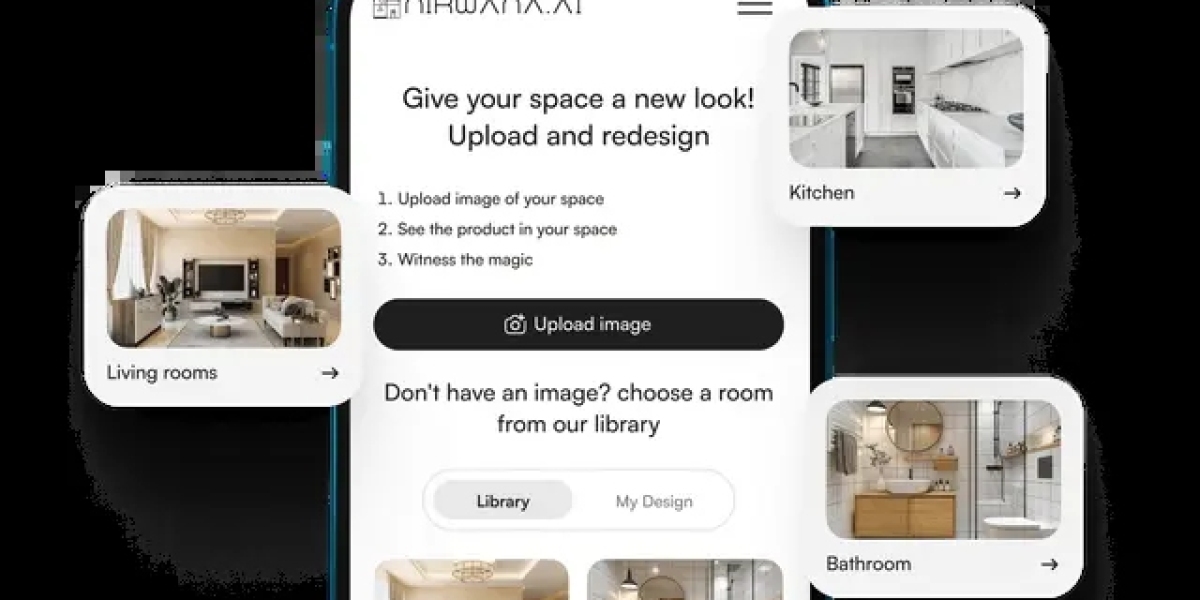

Choosing the right tiles for your home renovation can feel like navigating a maze. From selecting colors and patterns to ensuring proper alignment, mistakes can be costly and time-consuming. That’s where a realistic tile preview online comes into play. With this tool, you can see how different tiles will look in your space before committing to a single purchase. It brings your ideas to life, helping you make confident, informed decisions while saving both time and money.
Why You Should Use a Realistic Tile Preview Online Tool
Before diving into the steps, let’s understand the key benefits of using a digital tile preview.
1. Visualize Before You Commit
Even the most stunning tile can look off in a particular room. A preview tool lets you:
Experiment with multiple colors and textures
Test different patterns and layouts
See the effect of various grout colors
2. Save Money and Reduce Waste
Ordering tiles without a preview often leads to excess purchases or design errors. A realistic preview ensures precise planning.
3. Experiment Freely
Try combinations you might hesitate to test in real life. Mix-and-match styles, colors, and finishes without risk.
Step 1: Measure Your Space Accurately
The foundation of any successful tiling project is accurate measurements.
Tips for Measuring
Measure length, width, and height of walls or floors
Note obstacles like doors, cabinets, or columns
Sketch a rough layout to guide the tool
Accurate dimensions ensure your virtual preview mirrors real-world results.
Step 2: Upload or Select Your Room
Most online tools allow either a photo upload or a pre-designed template.
How to Prepare Your Upload
Take clear, well-lit photos of the room
Capture the full floor or wall in one shot if possible
Keep the area clutter-free for better visualization
Once uploaded, the software maps your room and scales tiles appropriately.
Step 3: Choose Your Tiles
This is where creativity comes in. Select tiles based on:
Material: Ceramic, porcelain, natural stone
Size: Large-format for spacious effect, small tiles for detail
Color & Finish: Matte, glossy, patterned, or solid
The realistic preview allows you to see every combination in real-time.
Step 4: Arrange Tiles in Your Virtual Room
Drag and drop tiles within the tool to explore layouts.
Alignment Tips
Maintain symmetry for a clean look
Test diagonal or herringbone patterns for modern appeal
Position accent tiles to highlight specific areas
Trying multiple arrangements helps you find the most aesthetically pleasing option.
Step 5: Adjust Grout Colors
Grout can drastically change your tile’s appearance.
Tips for Grout Selection
Light grout with dark tiles → Adds contrast
Dark grout with light tiles → Hides stains and dirt
Matching grout → Creates seamless, minimalist visuals
Previewing different grout colors ensures the final look is exactly as envisioned.
Step 6: Simulate Lighting Conditions
Lighting affects how tiles appear.
Check Your Tiles Under:
Natural daylight
Artificial evening light
Shadowed corners
This ensures that your tiles look perfect throughout the day and in photos.
Step 7: Calculate Tile Quantity
After finalizing the layout, most realistic preview tools can estimate how many tiles you need.
Advantages
Minimizes wastage
Helps maintain budget
Avoids last-minute orders
Step 8: Save and Share Your Design
Save your project or export it for collaboration.
Sharing Options
Show contractors your plan for accurate installation
Compare multiple designs with friends or family
Keep a record for future renovations
Tips for Getting the Best Results
1. Use Accurate Measurements
Even minor errors can distort your layout. Double-check dimensions.
2. Experiment With Layouts
Try vertical, horizontal, diagonal, or mosaic patterns to see what works best.
3. Include Room Fixtures
Add furniture, cabinets, or sinks to see the complete effect.
4. Test Accent Tiles
Preview borders, focal points, and feature walls to enhance design.
5. Consider Realistic Textures
Choose high-resolution tile images for the most authentic preview.
Common Mistakes to Avoid
Ignoring grout impact
Overlooking corners and obstacles
Not simulating different lighting
Forgetting to save multiple designs
Avoiding these mistakes ensures that your virtual preview translates perfectly to reality.
FAQs
1. Is the tool easy for beginners?
Yes, most realistic tile preview online tools are intuitive, with drag-and-drop features and pre-made templates.
2. Can I mix different tile types?
Absolutely. Combine ceramic, porcelain, or stone tiles to create unique patterns.
3. Will the preview be accurate for installation?
Minor on-site adjustments may be needed, but the tool provides highly reliable estimates for layout and quantity.
4. Can I use it for walls as well as floors?
Yes, these tools are suitable for bathrooms, kitchens, living rooms, and decorative wall installations.
Final Thoughts
A realistic tile preview online transforms how homeowners and designers approach tiling projects. By visualizing layouts, testing colors and patterns, adjusting grout, and simulating lighting, you can avoid costly mistakes and achieve impeccable results. Following this step-by-step guide ensures that every tile is placed thoughtfully, producing a space that is both functional and aesthetically stunning. With this tool, perfect results are no longer a guessing game—they’re just a few clicks away.